
Deploy Node.js App on AWS EC2 – “A Comprehensive Step-by-Step Guide
Introduction: Deploy Node.js App on AWS EC2 (Elastic Compute Cloud) is a service provided by Amazon Web Services that allows




Deploying and managing a secure and scalable infrastructure is a critical part of running any digital business. At Digitalux, we believe in building reliable and secure infrastructure for our clients and our own projects. We recently set up our infrastructure using AWS EC2 for hosting and Hostinger for DNS management. In this blog, I’ll walk you through the process step by step, explaining not just what we did but why we did it, so that anyone can replicate the setup or troubleshoot configurations in the future.
You can also read the proper documentation of Amazon EC2 at : Amazon AWS EC2
The steps of setting up AWS EC2 with hostinger are as under:
When building a cloud-based infrastructure, the first step is to launch an EC2 instance on AWS. This essentially gives you a Linux virtual machine running in the cloud.
We selected Amazon Linux 2023, which is lightweight, secure, and optimized for AWS environments. It also comes with frequently updated packages, making it ideal for web hosting.
We opted for t3.medium, which provides a good balance of CPU and memory — enough to run a typical web application without unnecessary cost.
A security group in AWS works like a firewall. For our Linux server, we allowed only the essential ports:
Once the instance was launched, AWS provided a public IPv4 address that we used to connect to the server.
On a Linux machine, you can connect to your EC2 instance using the .pem key file downloaded when creating the instance. Run this command:
chmod 400 digitalux-key.pem   # Secure the key
ssh -i "digitalux-key.pem" ec2-user@your-public-ipThis gives you shell access to the Linux server where you can install and configure software.
After the EC2 instance is ready, the next step is linking it with your domain (digitalux.pk) using Hostinger DNS. This ensures that when visitors type your domain in the browser, it points to your Linux server.
In Hostinger’s DNS management panel:
This tells the domain to route traffic directly to your Linux server.
Add a CNAME record for www.digitalux.pk pointing to digitalux.pk.
digitalux.pk and www.digitalux.pk open the same site.Add CAA records to define which Certificate Authority (CA) can issue SSL certificates for your domain.
For example, to authorize Let’s Encrypt, use:
This prevents unauthorized SSL providers from issuing certificates for your domain, adding an extra security layer. At this point, the Linux EC2 instance is live, and the DNS records ensure smooth communication between the domain and the server. Now, when you type digitalux.pk in a browser, it resolves directly to the Linux machine running on AWS.
Once the EC2 Linux server was up and connected with the domain, the next step was to install a web server so it could actually serve web pages. We chose Apache, one of the most reliable and widely used web servers for Linux.
On Amazon Linux 2023, we used the dnf package manager to install Apache. The following commands were run:
sudo dnf install httpd -y      # Installs Apache
sudo systemctl start httpd     # Starts the Apache service
sudo systemctl enable httpd # Ensures Apache starts automatically on boothttpd package).At this point, if you visit your EC2 public IP address in a browser, you should see Apache’s default test page, confirming the web server is running.
By default, Apache serves a generic test page. To make it respond specifically to our domain (digitalux.pk), we created a new virtual host configuration file.
sudo nano /etc/httpd/conf.d/digitalux.conf<VirtualHost *:80>
ServerName digitalux.pk
ServerAlias www.digitalux.pk
DocumentRoot /var/www/html
</VirtualHost>digitalux.pk).www.digitalux.pk)./var/www/html).CTRL + O, Enter, then CTRL + X).sudo systemctl restart httpdNow, Apache is installed and configured on the Linux EC2 server. Any requests to digitalux.pk or www.digitalux.pk are directed to the /var/www/html directory, where you can place your website files.
After configuring Apache, the next priority was securing the website with HTTPS. This ensures that all data exchanged between visitors and the server is encrypted. For this, we used Certbot, a free and widely used tool for obtaining SSL certificates from Let’s Encrypt.
On Amazon Linux 2023, Certbot and its Apache plugin can be installed directly with dnf. Run:
sudo dnf install certbot python3-certbot-apache -ycertbot → the main tool for managing SSL certificates.python3-certbot-apache → integrates Certbot with Apache, so it can automatically configure SSL for your domain.Once Certbot was installed, we generated and installed an SSL certificate for both the root domain (digitalux.pk) and its www subdomain.
sudo certbot --apache -d digitalux.pk -d www.digitalux.pk-apache flag tells Certbot to configure Apache automatically.d options specify the domains to secure with SSL.During this process:
After setup, we verified SSL installation:
https://digitalux.pk.For additional testing, you can run:
sudo certbot certificatesThis displays certificate details, including expiry dates.
The Linux EC2 server is now serving digitalux.pk securely over HTTPS. All connections are encrypted, protecting both user data and server communication.
Even after installing SSL, some users may still access the website using plain HTTP (port 80) instead of the secure HTTPS (port 443). To ensure every visitor always uses a secure connection, we configured Apache to automatically redirect all HTTP requests to HTTPS.
We modified the Apache virtual host configuration file (/etc/httpd/conf.d/digitalux.conf) to include a permanent redirect.
Open the configuration file:
sudo nano /etc/httpd/conf.d/digitalux.confUpdate the content to:
<VirtualHost *:80>
    ServerName digitalux.pk
    ServerAlias www.digitalux.pk
    Redirect permanent / <https://digitalux.pk/>
</VirtualHost>
digitalux.pk and www.digitalux.pk are redirected.https://digitalux.pk/.This means whenever someone types https://digitalux.pk, Apache will immediately forward them to https://digitalux.pk.
After saving the configuration changes, restart Apache so the new settings take effect:
sudo systemctl restart httpdThis reloads Apache with the updated redirection rules.
On a Linux terminal or any browser:
<https://digitalux.pk><https://digitalux.pk>You can also confirm using the curl command:
curl -I <https://digitalux.pk>Expected output:
HTTP/1.1 301 Moved Permanently
Location: <https://digitalux.pk/>
Now, all traffic is securely redirected to HTTPS. Visitors cannot accidentally browse an unsecured version of the site, ensuring encryption and data protection at all times.
SSL certificates from Let’s Encrypt are valid for 90 days. If not renewed on time, the certificate will expire, and visitors will see browser warnings about an insecure site. To prevent this, we set up automatic certificate renewal on our Linux EC2 server using Certbot and a scheduled cron job.
On Linux, cron is used to schedule recurring tasks. Certbot provides a built-in renewal command, so we scheduled it to run daily at midnight.
First, open the cron table for the root user:
sudo crontab -eThis opens the cron editor. Then, add the following line at the bottom:
0 0 * * * /usr/bin/certbot renew --quiet0 0 * * * → Runs the command every day at midnight./usr/bin/certbot renew → Checks all installed certificates and renews them if they’re about to expire.-quiet → Ensures the process runs silently without logging unnecessary messages (it will only alert in case of errors).Save and close the crontab. From now on, the server will automatically renew certificates before they expire.
Before relying on automation, it’s good practice to test the renewal process manually. Certbot allows a dry-run test that simulates renewal without actually replacing the certificates.
Run:
sudo certbot renew --dry-runIf everything is set up correctly, you’ll see messages confirming that the test renewal was successful.
After setting up cron, you can verify it’s working by checking system logs:
sudo cat /var/log/cronor checking Certbot’s log:
sudo cat /var/log/letsencrypt/letsencrypt.logThis ensures the cron job is running daily and Certbot is attempting renewals as expected.
With this setup, the SSL certificate for digitalux.pk is automatically renewed. The Linux EC2 server will always serve a valid certificate, eliminating the risk of downtime or browser security warnings.
Securing the server is just as important as running it. Even if the website works, leaving ports open unnecessarily can expose the system to attacks. To control access, we used two layers of protection: AWS Security Groups (cloud-level firewall) and firewalld (Linux server firewall).
When launching the EC2 instance, AWS requires you to assign a security group. This acts like a firewall outside your server — filtering incoming traffic before it even reaches your Linux machine.
For our web server, we allowed only the essential ports:
This ensures that no other ports are exposed publicly, reducing the attack surface.
Even though AWS Security Groups provide cloud-level filtering, we also enabled firewalld on the Linux server. This adds a second layer of defense by controlling which ports the server itself listens to.
Run the following commands:
sudo firewall-cmd --permanent --add-service=http
sudo firewall-cmd --permanent --add-service=https
sudo firewall-cmd --reload
-add-service=http → Opens port 80 for HTTP traffic.-add-service=https → Opens port 443 for HTTPS traffic.-reload → Applies changes without rebooting.You can verify which services are allowed using:
sudo firewall-cmd --list-allThis will show open ports and active services.
With both AWS Security Groups and Linux firewalld configured, our EC2 instance is protected at two levels. Only the necessary web traffic (HTTP and HTTPS) is allowed in, while everything else remains blocked — ensuring a secure hosting environment for digitalux.pk.
To make this setup easier to visualize, here’s a simple diagram showing how our domain, DNS, and EC2 server connect together to serve digitalux.pk securely:
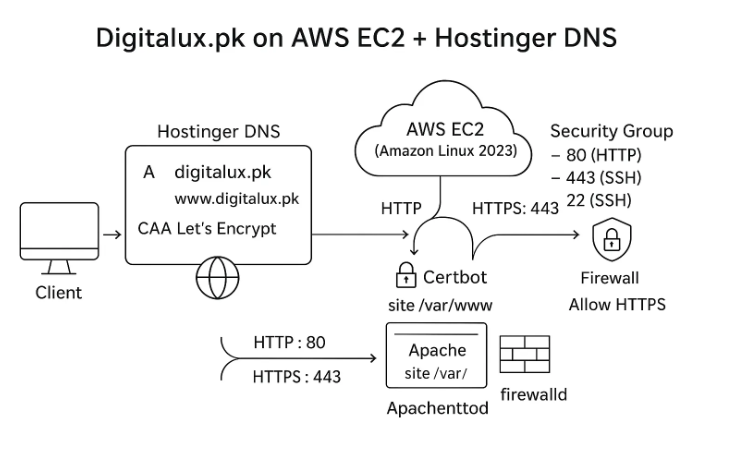
By carefully following each step from launching an EC2 instance and configuring DNS to installing Apache, securing with SSL, and setting up firewalls, we successfully deployed and secured our website digitalux.pk on AWS EC2 with Hostinger DNS.
This setup provides a strong foundation that is:
With this setup, our infrastructure is not only ready for today’s needs but also future-proofed for growth and easy management.
Introduction: Deploy Node.js App on AWS EC2 (Elastic Compute Cloud) is a service provided by Amazon Web Services that allows

Introduction: At Digitalux, we constantly strive to enhance team productivity by integrating powerful tools into our workflows. In modern work

Introduction: Securing a website with an SSL certificate is essential for data protection, trust, and improved SEO rankings. Automatic SSL
